9. 20-Class Object Detection Experiment
About 2 min
Routine Code
import sensor, image, time, lcd
from maix import KPU
import gc

lcd.init()                          # Initialize LCD display
sensor.reset()                      # Reset and initialize camera
sensor.set_pixformat(sensor.RGB565) # Set camera output format to RGB565
sensor.set_framesize(sensor.QVGA)   # Set camera output size to QVGA (320x240)
sensor.skip_frames(time = 1000)     # Wait for camera to stabilize
clock = time.clock()                # Create a clock object for FPS calculation

# Detection model requires 320x256 input; initialize an image here
od_img = image.Image(size=(320,256))

obj_name = ("aeroplane","bicycle", "bird","boat","bottle","bus","car","cat","chair","cow","diningtable", "dog","horse", "motorbike","person","pottedplant", "sheep","sofa", "train", "tvmonitor")
anchor = (1.3221, 1.73145, 3.19275, 4.00944, 5.05587, 8.09892, 9.47112, 4.84053, 11.2364, 10.0071)
# Create a KPU object
kpu = KPU()
print("ready load model")
# Load model
#kpu.load_kmodel(0x300000, 1536936)
kpu.load_kmodel("/sd/KPU/voc20_object_detect/voc20_detect.kmodel")
# Initialize YOLO2
kpu.init_yolo2(anchor, anchor_num=5, img_w=320, img_h=240, net_w=320 , net_h=256 ,layer_w=10 ,layer_h=8, threshold=0.5, nms_value=0.2, classes=20)

i = 0
while True:
    i += 1
    print("cnt :", i)
    clock.tick()                        # Update FPS clock
    img = sensor.snapshot()             # Capture an image
    a = od_img.draw_image(img, 0,0)     # Write img to od_img at coordinates (0,0)
    od_img.pix_to_ai()                  # Convert RGB565 image to r8g8b8 format for AI inference
    kpu.run_with_output(od_img)         # Run KPU inference on input image
    dect = kpu.regionlayer_yolo2()      # YOLO2 post-processing
    fps = clock.fps()                   # Get FPS

    # Draw boxes and display object class
    if len(dect) > 0:
        print("dect:",dect)
        for l in dect :
            a = img.draw_rectangle(l[0],l[1],l[2],l[3], color=(0, 255, 0))
            a = img.draw_string(l[0],l[1], obj_name[l[4]], color=(0, 255, 0), scale=1.5)

    a = img.draw_string(0, 0, "%2.1ffps" %(fps), color=(0, 60, 128), scale=1.0)
    lcd.display(img)
    gc.collect()

# Deinitialize KPU object and release model memory
kpu.deinit()
Experiment Preparation
- First transfer model files to the TF card, then insert the TF card into the K210 module's TF card slot. For detailed steps, see Transfer Model Files to TF Card.
- Recognizable objects include: 0. aeroplane, 1. bicycle, 2. bird, 3. boat, 4. bottle, 5. bus, 6. car, 7. cat, 8. chair, 9. cow, 10. dining table, 11. dog, 12. horse, 13. motorbike, 14. person, 15. potted plant, 16. sheep, 17. sofa, 18. train, 19. TV monitor. Prepare any one of these objects.
- Connect the K210 to your computer via USB.
- Open CanMV IDE and run the routine code above.
Experiment Results
- When the K210 detects a trained object from the model, it draws a green rectangle around the object, displays the object name, and shows the current frame rate in the upper-left corner.

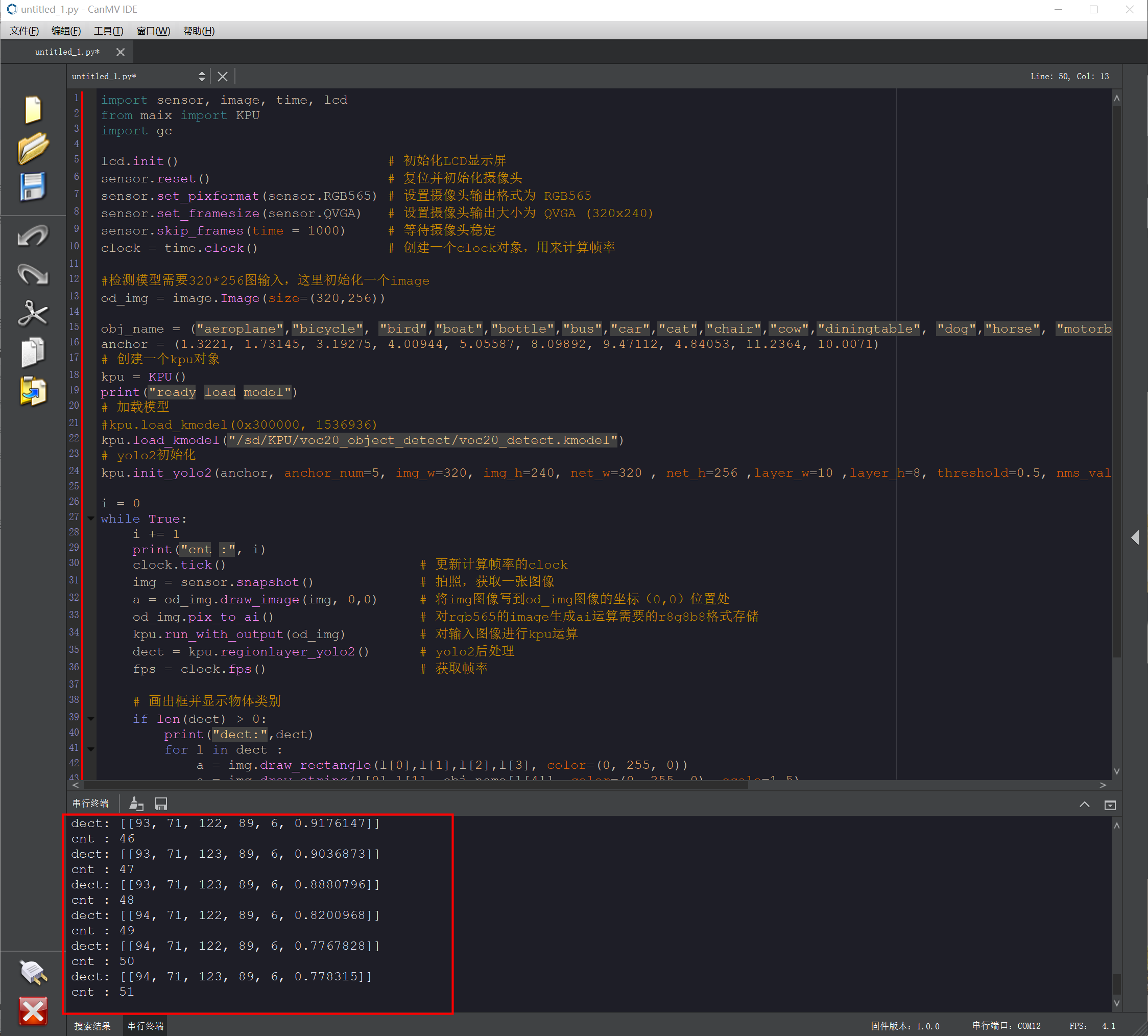
- Object detection results are printed in the IDE Serial Terminal.
Routine Code Explanation
Omitted. See comments in the routine code.