7. Touchscreen Experiment
About 2 min
Routine Code
import touchscreen as ts
from machine import I2C
import lcd, image
from board import board_info
from fpioa_manager import fm
from maix import GPIO

fm.register(board_info.BOOT_KEY, fm.fpioa.GPIO1, force=True)
btn_clear = GPIO(GPIO.GPIO1, GPIO.IN)

lcd.init()
i2c = I2C(I2C.I2C0, freq=400000, scl=24, sda=25)
ts.init(i2c)
#ts.calibrate()
lcd.clear()
img = image.Image()
status_last = ts.STATUS_IDLE
x_last = 0
y_last = 0
draw = False

while True:
    (status,x,y) = ts.read()
    print(status, x, y)
    if draw:
        img.draw_line((x_last, y_last, x, y))
    if status_last!=status:
        if (status==ts.STATUS_PRESS or status == ts.STATUS_MOVE):
            draw = True
        else:
            draw = False
        status_last = status
    lcd.display(img)
    x_last = x
    y_last = y
    if btn_clear.value() == 0:
        img.clear()
Experiment Preparation
- Connect the K210 to your computer via USB.
- Open CanMV IDE and run the routine code above.
Experiment Results
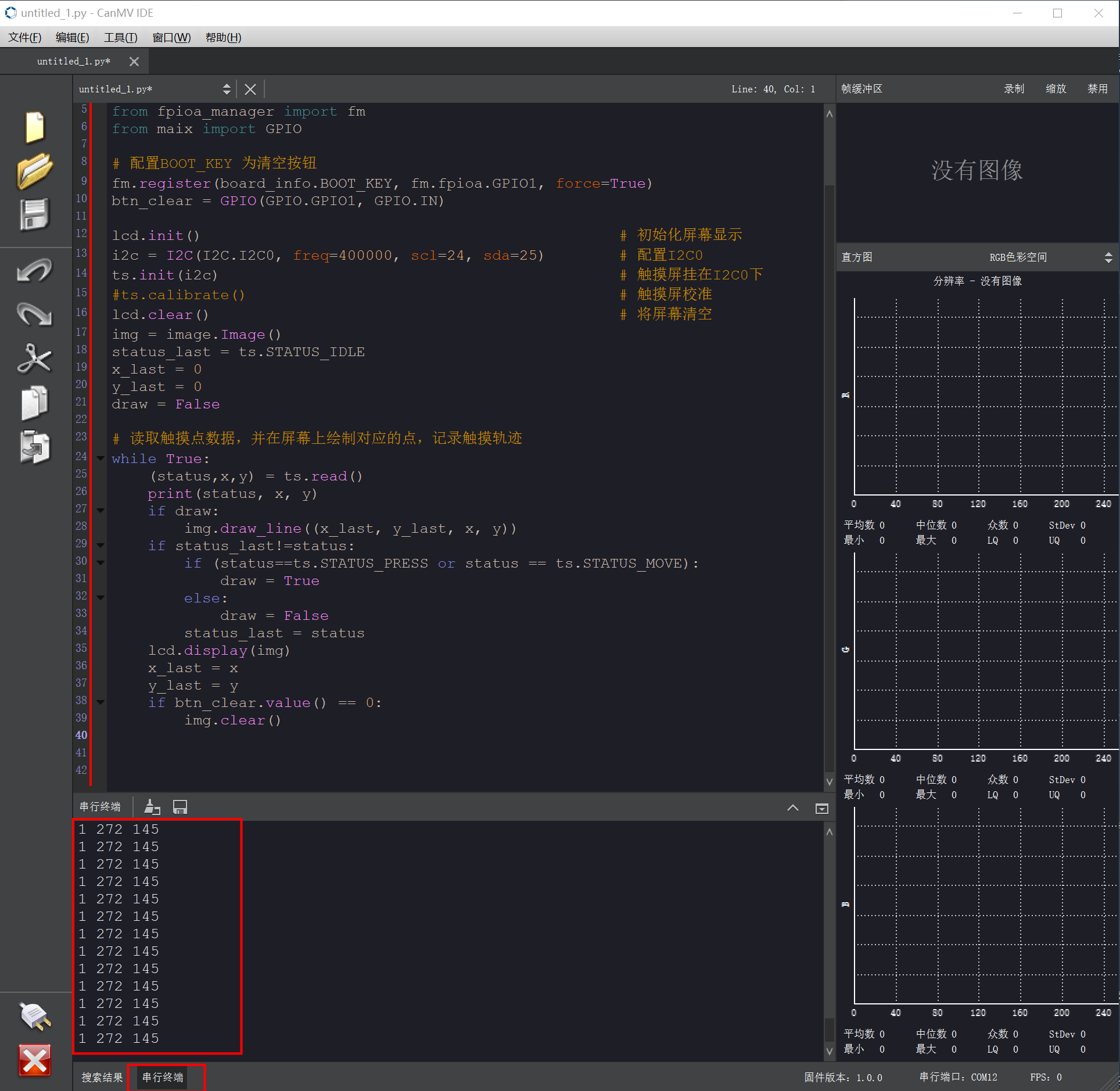
- After running, the K210 continuously processes touchscreen input and draws touch trajectories on the LCD. A white line follows the touch path, and touch coordinates are printed in the Serial Terminal until the BOOT button is pressed to clear the screen.

Routine Code Explanation
- Import the modules required to run the routine. The
touchscreenmodule (aliasts) handles touchscreen operations.I2Cconfigures I2C communication.lcdandimagehandle LCD display and image operations.board_info,fpioa_manager(aliasfm), andmaix.GPIOhandle board pin configuration, function mapping, and GPIO operations.
- Import the modules required to run the routine. The
import touchscreen as ts
from machine import I2C
import lcd, image
from board import board_info
from fpioa_manager import fm
from maix import GPIO- Use
fm.registerto configure the board's BOOT_KEY pin as GPIO1 with forced registration. Create GPIO objectbtn_clearas input to detect when the button is pressed to clear the screen image.
- Use
fm.register(board_info.BOOT_KEY, fm.fpioa.GPIO1, force=True)
btn_clear = GPIO(GPIO.GPIO1, GPIO.IN)- Initialize the LCD. Configure I2C object
i2con I2C0 at 400000 Hz with SCL on pin 24 and SDA on pin 25. Initialize the touchscreen on this I2C bus for communication.
- Initialize the LCD. Configure I2C object
lcd.init()
i2c = I2C(I2C.I2C0, freq=400000, scl=24, sda=25)
ts.init(i2c)ts.calibrate()is commented out; calibration is not needed for now. Clear the LCD for drawing. Createimage.Imageobjectimg. Initialize variables:status_lastto idle (ts.STATUS_IDLE),x_lastandy_lastto 0 for previous touch coordinates, anddrawtoFalseto control drawing.
#ts.calibrate()                                         # Touchscreen calibration
lcd.clear()                                             # Clear screen
img = image.Image()
status_last = ts.STATUS_IDLE
x_last = 0
y_last = 0
draw = False- Enter an infinite loop.
while True:- Read touchscreen status and current touch coordinates, then print them.
(status, x, y) = ts.read()
print(status, x, y)- If
drawis True, draw a line from the previous touch point(x_last, y_last)to the current point(x, y)to record the touch trajectory.
- If
if draw:
img.draw_line((x_last, y_last, x, y))- When the touchscreen status changes from the previous state: if the current state is press or move, set
drawto True to start or continue drawing; otherwise setdrawto False to stop (e.g., when the finger is lifted). Updatestatus_lastto the current status.
- When the touchscreen status changes from the previous state: if the current state is press or move, set
if status_last!= status:
    if (status == ts.STATUS_PRESS or status == ts.STATUS_MOVE):
        draw = True
    else:
        draw = False
status_last = status- Display the image with touch trajectories on the LCD.
lcd.display(img)- Update the previous touch coordinates to the current coordinates for the next line segment.
x_last = x
y_last = y- If
drawis True, draw a line from(x_last, y_last)to(x, y)onimgto record the touch trajectory.
- If
if draw:
img.draw_line((x_last, y_last, x, y))- Check if the clear button is pressed. If pressed (
btn_clear.value() == 0), clearimgto restart drawing.
- Check if the clear button is pressed. If pressed (
if btn_clear.value() == 0:
    img.clear()